Tuesday, June 10, 2008

Eclipse Ganymede RC2 Data Tools

This post is one of a number of reviews of the upcoming Eclipse Ganymede release. It has been added to the Ganymede Around the World map. Donate and become a Friend of Eclipse!

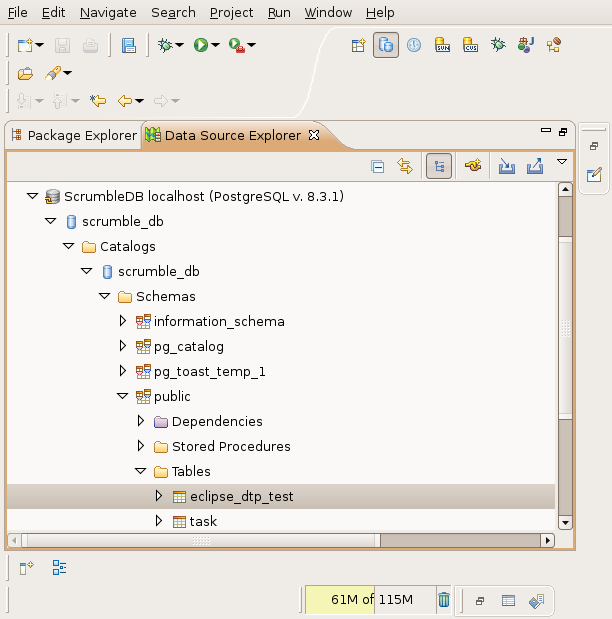
More Eclipse Ganymede RC2 stuff reviewed, more stuff to blog about, and once again something I really appreciate! I was giving a Java basics course and got to the point of explaining JDBC, iBatis and PostgreSQL. For this course, I could not get the data tools to work with my postgres (8.3.1) database install. Adding the connection and pinging the database worked, but trying to navigate the database in the data source explorer failed miserably. This might have been an issue specific to (this version of) PostgreSQL, but to me it was yet another one of those things that didn't work with Europa. It forced me to switch between Eclipse and psql/ pgAdmin to run the scripts I had created in Eclipse, copying and pasting as I went along.

With Ganymede I have not only been able to add and ping my postgres 8.3.1 databases, I was able to browse them as well! It just works (TM), out of the box (R)! Now I can also set the connection info on my SQL scripts and execute them from within Eclipse: Just right click a .sql file and select "Execute SQL Files". Excellent!! One minor remark is that I would have expected to be able to run the SQL queries from the "Run" toolbar button (the first place I went looking). I'll check and see if a bugzilla exists, and if not, I'll register it as an enhancement and see if this is something worth adding in the future.


Browsing the PostgreSQL database structure

The SQL execution engine does not understand the psql specific \i syntax for including external files, but that's understandable as these queries are fired to the database via JDBC and not via psql. The \i is something psql knows about, the server does not, nor does DTP. As I use \i for my scripts to run in the correct order, I will have to find a way around this or try something completely different. For this one I will also check and see if an "include file" (not necessarily using a \i syntax) bugzilla exists. Again, if not, I'll create one and check if people care about such a thing.


SQL editor connected to a database


Conclusion

Besides these minor usability issues, I am again pleasantly surprised by something that is working rather than not. Like I said in my previous post, I have great hopes that this release will be in many ways more mature than the Europa bundle. I am starting to become more and more enthusiastic the more I use Ganymede! Another case deserving two thumbs up!

Some other things I've already been fiddling around with are the web tools, getting Tomcat to work and run a simple web application. So for my next post I'll have a closer look into WTP and see if this time I will be more successful installing, running and deploying to "Geronimoooooo!!!!!" ;-)


Monday, June 09, 2008

Friend of Eclipse

After all these years of using Eclipse and Eclipse based technology, I decided to do something for the Eclipse foundation and community. There is a friends of Eclipse program where you can donate $35 or more and become a friend. You get access to a friends of Eclipse mirror site and as an individual you are allowed to carry the friends' logo, which is what I'm gonna do on this blog ;-)


Become a friend of Eclipse as well! You'll help out the foundation and community around this great project. Donations can be made here:

http://www.eclipse.org/donate/index.php

Eclipse Ganymede RC2 First Impression

This post is one of a number of reviews of the upcoming Eclipse Ganymede release. It has been added to the Ganymede Around the World map. Donate and become a Friend of Eclipse!

Update regarding Subclipse and Ganymede (June 29th): It seems that a lot of traffic is landing on this page via Google regarding this topic. If you landed here because you are having trouble getting Subclipse to work, you may want to check this article.

The good folks over at Eclipse want reviews of the Ganymede release candidate. Now that's an excellent motivation to download and start using this new version of Eclipse. So without further ado, here's a hands on review of the new Ganymede RC2 build.

After downloading and unpacking the JEE bundle, I started Eclipse with my old workspace to see how the workspace migration would fare. All my Java projects are there, so that's a good sign. It could not fully restore the workbench layout though due to missing plugins that I did not install yet. My bad, time to install the missing Subversion plugin first. The other missing plugin, a LDAP browser, can wait. Setting the proxy now supports the use of the system proxy, a very welcome feature!

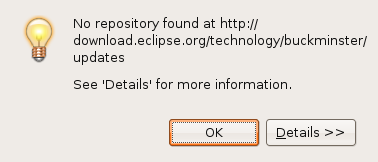
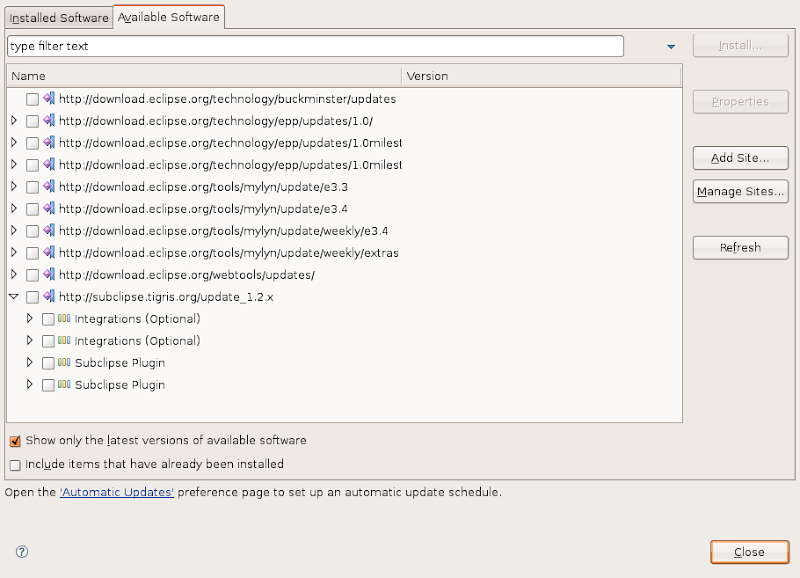
The software update and plugin install system has changed. This new system looks good. It is easy to use and get used to. Just go to "Available Software" and "Add Site...". The site configuration only allows for a URL, no longer a name. Entering http://subclipse.tigris.org/update_1.2.x adds the Subclipse update site. I now get an error about Buckminster, it looks like the Buckminster integration repository is gone.


Buckminster error

I also get to see the "Integrations (Optional)" and "Subclipse Plugin" twice. Removing the SVN site and adding it again solves the latter problem. The buckminster error disappeared as well. Checking Subclipse and Mylyn integration, and install!


Strange behavior after the Buckminster error, features are shown twice

Getting the plugin to work without restart causes some problems. I still have the old perspective button, and it is not functioning properly. After a restart, the perspective works (guess I am pushing my luck applying changes on the fly). Getting rid of the LDAP browser perspective button reveals some quirks as well. The "Close" menu on the perspective's button does not work, but I am able switch to it and then close it via the "Window" menu. Weird, but nothing too spectacular.

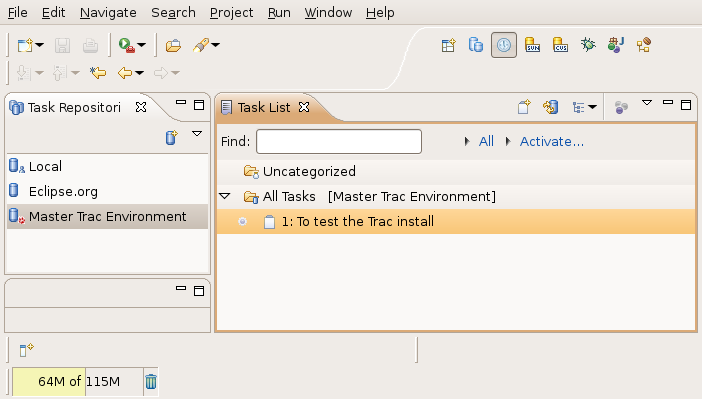
Checking my Mylyn tasks, I see that I am missing the Trac task repository that I had configured. This is probably due to the fact that the Trac connector is not there yet, so let's install that as well. This is where it gets a bit confusing. The installed software says I have Mylyn 3.0.0, but in the available software I only see version 2.3.2 for Eclipse 3.4. I wouldn't want to downgrade, so let's add the weekly Eclipse 3.4 update site then and see what happens.

After adding http://download.eclipse.org/tools/mylyn/update/weekly/e3.4 and selecting the Mylyn stuff I need, I get the message that my original request was modified, saying things like: "Feature X is already installed, so an update will be performed instead." Great! It will update my existing install with the Mylyn weekly updates! After installation the Trac repository from my old workspace automagically appears, together with the queries I had defined.


Mylyn back in business, old repositories and queries are restored

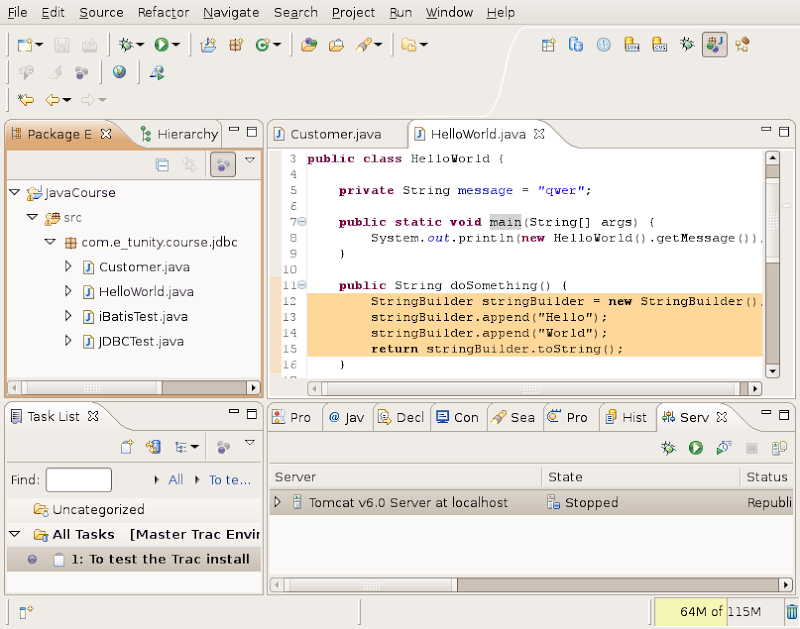
Java coding adds a range of small but very handy great time saving features, such as the string concatenation to string buffer conversion quick fix, automatic casts in the code completion, a quick fix for getter and setter generation, etc. The breadcrumb feature gives a means to browse source code with full screen editors, so no need to unmaximize to get to the package explorer, and then maximizing again. I can also imagine that this will work well for those who have smaller displays.


Showing off Mylyn active task focus and the String to StringBuffer conversion


Conclusion

This is just a first impression of Ganymede RC2 and I have just converted my old workspace, performed some basic tasks and tested some of the new features. I did run into some quirks here and there, but my overall impression so far is quite good. I was afraid that featurism combined with the daunting task of delivering this combined release would result in below par quality, but I am proven wrong so far. I have not (yet) run into major show stoppers. So there's hope that this release will be a step forward as far as the maturity of the various bundled components is concerned. There are no major changes in the appearance, and that is just fine with me. Java coding works pretty much the same, so I can pick up where I left in my old workspace. Add the time savers to that, and I am a happy coder.

So where is all this going? I have only touched a very small part of what is becoming a huge beast. Eclipse has come a long way ever since I started using version 2. At first it was yet another IDE, now it is a full fledged enterprise application development environment (if you wish, that is!). I have been very, very impressed with Mylyn. I have been using it since the very first release and it's great that it allows you to focus on the task and its associated resources at hand. Being part of an open platform itself, Mylyn integrates with other open platforms such as Trac. I am trying to setup Trac for task tracking and project management. The Trac connector brings all this task management straight into the development environment itself. So besides this beast becoming more technology and enterprisey, it also has the potential of becoming a true collaborative development platform that is connected via the web.

Eclipse has always been my favorite IDE ever since version 2, and by the looks of Ganymede it'll be my favorite IDE for many more years to come. Two thumbs up and let's hope this simultaneous release is going to be a huge success!


Thursday, May 22, 2008

Double Sided Boarding Passes Work

W00t! My double sided boarding pass mistake worked wonders today. In the morning it was folded to show the flight to London. When I arrived there I folded it so it would open on the way back to Amsterdam.


Scanning the bar code was no problem, as they didn't overlap and cause issues with the bar code on the other side shining thru. Nobody complained (not sure whether they evar noticed, have a policy that allows this or have already seen other passengers doing this too).


Next challenge would be to print both on one side and see if the let me board, just because we can, although I think they may have a problem with that (passes are shrunk, more difficult to read, bar code may not scan, it's just plain weird to do something like that, etc.).


As promised two (blurry for authenticity's sake ;-) pictures of the double sided boarding pass (notice "BOARDING PASS" in mirror shining through in the second one):


Wednesday, May 21, 2008

Double Sided Boarding Pass

Nowadays aircraft carriers allow you to print your own boarding passes. Tomorrow I have to fly someplace and back the same day. I checked in on the carriers website and opened the PDF document with the two boarding passes, page one to and page two back.


I hardly ever print. When I do, I print double sided. Saves a bunch of trees. I forgot to turn that off printing the boarding passes tho, so I ended up with both to and back on the same piece of paper. To on the one side, back on the other. A double sided boarding pass so to say ;-)


Now that made me wonder: will they allow me to use that single piece of paper with the two boarding passes, one on each side? Why not give it a try. The bar codes on each side don't overlap, so that should not be a problem when scanning! I'll just have to make sure that I show the right side for the right flight!


I'll let you know if it worked out or not! And post some pictures of the double sided boarding pass as well! If it works, I'll be doing this more often. Heck!! I'm even gonna try to print both passes on a single side and see if I can get away with that!!


"Why?", you might ask: just because I can ;-)


Saturday, May 03, 2008

Open Source SWIFT Parser in Java

I have more than once in the past tried to find an open source SWIFT message parser. There are some defunct/ idle projects (one MT94X parser, jSWIFT, SWIFT Message Parser in Java) and some import/ export components that are part of larger projects (e.g. gnucash). I have now stumbled upon a proper stand alone and open source (LGPL) SWIFT message parser called WIFE.

WIFE is written in Java and sports parsing all message categories and service messages into a message model (message, blocks, tags). This model can be written to a SWIFT message. WIFE also supports converting to and from a (albeit non-standard) XML format and persisting messages using Hibernate. Interesting find! Might come in handy for some projects.

Monday, November 26, 2007

Deploying Web Applications Outside the Tomcat Install Directory

Suppose you have Tomcat installed somewhere, e.g. /opt/tomcat6 or /usr/local/tomcat5. Now you want to give users the ability to deploy their applications and start/ stop the Tomcat server if needed (e.g. in case of an unrecoverable crash of the Tomcat server). You can start modifying the Tomcat install directory to support multiple users (e.g. in a given group) to write in the webapps directory and to be able to deploy context files under conf and maybe add dummy users to the tomcat-users.xml to test authentication. But that is breaking open the main Tomcat install directory and potentially allowing users to break things. Another drawback is that having a single instance will cause all applications running on this instance to be unavailable if the server is shut down.

I will describe an alternative way of supporting multiple users using the Tomcat install, by means of each user/ application having its own server. The drawback of this approach is that multiple port numbers are needed and this requires a bit of coordination between users. The advantages however are that not a single change is needed in the Tomcat installation directory whatsoever, users can start stop their own instances without impacting other users/ applications and .

First you'll need a strategy of where to put the user's or application's Tomcat stuff. You could use /app or /opt, e.g. /app/user1, /app/user2, /opt/application1, etc. /app might be a better choice as some software installs in /opt and this could potentially cause the user's/ application's Tomcat stuff to be mixed with other software that you may or want to have installed in /opt. In this example we will have Tomcat 6 installed in /usr/local/tomcat6 and use /app for the applications. We will have two applications, acmeweb (Acme corporation's E-Business website) and acmehr (Acme corporation's human resources application). Create users acmeweb and acmehr with groups acmeweb and acmehr respectively and set their passwords:

adduser --system --shell /bin/bash --group acmeweb
adduser --system --shell /bin/bash --group acmehr
passwd acmeweb
passwd acmehr


Underneath /app create the acmeweb directory. Underneath acmeweb, create the directories bin, conf, webapps, temp, work and logs:

mkdir -p /app/acmeweb
cd /app/acmeweb
mkdir bin conf webapps temp work logs


Copy the following Tomcat scripts to bin:

cd /usr/local/tomcat6/bin/
cp startup.sh shutdown.sh setclasspath.sh catalina.sh /app/acmeweb/bin


Copy the following Tomcat configuration files to conf:

cd ../conf
cp server.xml web.xml /app/acmeweb/conf


Recursively copy /app/acmeweb to /app/acmehr:

cd /app
cp -R acmeweb acmehr


Recursively change ownership of the directories to the proper user and group:

chown -R acmeweb.acmeweb acmeweb
chown -R acmehr.acmehr acmehr


Set the user to acmeweb and create a .profile:

su - acmeweb
vi .profile


Put the following contents in the .profile:

export JAVA_HOME=/usr/local/java6
export CATALINA_HOME=/usr/local/tomcat6
export CATALINA_BASE=/app/acmeweb


Logout and set user to acmeweb again. Edit /app/acmeweb/conf/server.xml:

ctrl-d
su - acmeweb
vi /app/acmeweb/conf/server.xml


Modify the server, AJP and HTTP connector ports and change them to 20105, 20109 and 20180 respectively (you may also consider turning off the AJP connector altogether):

<Server port="20105" shutdown="SHUTDOWN">
...
<Connector port="20180" protocol="HTTP/1.1"
           connectionTimeout="20000"
           redirectPort="8443" />
...
<Connector port="20109" protocol="AJP/1.3" redirectPort="8443" />


Create a ROOT context, add an index.html to the context and start Tomcat:

cd /app/acmeweb
mkdir webapps/ROOT
echo Acme Web > webapps/ROOT/index.html
bin/startup.sh


Logout as the acmeweb user, set the user to acmehr and create a .profile:

ctrl-d
su - acmehr
vi .profile


Put the following contents in the .profile:

export JAVA_HOME=/usr/local/java6
export CATALINA_HOME=/usr/local/tomcat6
export CATALINA_BASE=/app/acmehr


Logout and set user to acmehr again. Edit /app/acmehr/conf/server.xml:

ctrl-d
su - acmehr
vi /app/acmehr/conf/server.xml


Modify the server, AJP and HTTP connector ports and change them to 20205, 20209 and 20280 respectively (you may also consider turning off the AJP connector altogether):

<Server port="20205" shutdown="SHUTDOWN">
...
<Connector port="20280" protocol="HTTP/1.1"
           connectionTimeout="20000"
           redirectPort="8443" />
...
<Connector port="20209" protocol="AJP/1.3" redirectPort="8443" />


Create a ROOT context, add an index.html to the context and start Tomcat:

cd /app/acmehr
mkdir webapps/ROOT
echo Acme HR > webapps/ROOT/index.html
bin/startup.sh


Open a browser and connect to the IP address of your Tomcat server, ports 20180 and 20280:

http://<tomcat server ip address>:20180/
http://<tomcat server ip address>:20280/


The first should display Acme Web in your browser, the second Acme HR. Both instances are running under their own user, these users can restart their own instance of Tomcat and the configuration of the server can be done by those users:

acmeweb 5295 1 0 23:02 ? 00:00:04 /usr/local/java6/bin/java -Djava.endorsed.dirs=/usr/local/tomcat6/endorsed -classpath :/usr/local/tomcat6/bin/bootstrap.jar:/usr/local/tomcat6/bin/commons-logging-api.jar -Dcatalina.base=/app/acmeweb -Dcatalina.home=/usr/local/tomcat6 -Djava.io.tmpdir=/app/acmeweb/temp org.apache.catalina.startup.Bootstrap start

acmehr 5333 1 0 23:05 ? 00:00:03 /usr/local/java6/bin/java -Djava.endorsed.dirs=/usr/local/tomcat6/endorsed -classpath :/usr/local/tomcat6/bin/bootstrap.jar:/usr/local/tomcat6/bin/commons-logging-api.jar -Dcatalina.base=/app/acmehr -Dcatalina.home=/usr/local/tomcat6 -Djava.io.tmpdir=/app/acmehr/temp org.apache.catalina.startup.Bootstrap start


In this setup the main Tomcat install directory in /usr/local/tomcat6 remains untouched. The trick is setting the CATALINA_HOME to the tomcat install in /usr/local/tomcat6 and CATALINA_BASE to the user specific Tomcat directory in /app/acmeweb and /app/acmehr.

Monday, November 19, 2007

Method Name in the URL File Name with Spring MVC's MultiActionController

Spring's MultiActionController is great for allowing a single controller to be able to handle multiple types of requests. What method to dispatch to is determined based on the method name resolver. You have several options here. E.g. with the ParameterMethodNameResolver you specify what method to call in the request parameters. You can specify that a certain request parameter, e.g. action, is going to contain the method name to dispatch to:

http://localhost:8080/app/someController.do?action=someMethod

The InternalPathMethodNameResolver resolves the controller from the path and the method from the file name without extension, e.g. the following URL would cause someMethod to be called on the controller. It basically strips the file name from the path (the part after the last slash) and strips the extension (.do):

http://localhost:8080/app/someController/someMethod.do

The PropertiesMethodNameResolver allows you to specify the method in a "value of the page" kind of way. E.g. you have someController.do and you add =someMethod to the URL in order for it to resolve to the controller and the method that is to be called:

http://localhost:8080/app/someController.do=someMethod

Besides the above strategies, one could also imagine a strategy where both the controller and the method are passed in the file name part of the path. The construct would contain the name of the controller, e.g. someController, suffixed with what method to call, e.g. .someMethod, suffixed with the extension, in this case .do:

http://localhost:8080/app/someController.someMethod.do

The above can also be extended to support dispatching to a default method in case no method name was given, e.g. one could specify someMethod to be the default and then call:

http://localhost:8080/app/someController.do

Spring does not have support for this scheme, but it can be easily extended to do so and this article will show how. The first thing to do is setup the web.xml file of your web application (I have created a dynamic web project in Eclipse 3.3 called SpringTests, so replace any references to this project with references to your own). First register the DispatcherServlet. In the example below the DispatcherServlet is registered under servlet name mvc:

<servlet>
  <servlet-name>mvc<servlet-name>
  <servlet-class>
  org.springframework.web.servlet.DispatcherServlet
  <servlet-class>
  <init-param>
    <param-name>contextConfigLocation<param-name>
    <param-value>
    classpath:com/acme/mvc.xml
    <param-value>
  <init-param>
  <load-on-startup>1<load-on-startup>
<servlet>


Please note in the above snippet the location of the Spring configuration file. It is on the classpath in com/acme/mvc.xml, so unless you are making an exact copy of the setup described here, refer to your Spring configuration file that is going to have the URL mappings of the DispatcherServlet. Next step is to add the servlet mapping. To stay inline with the example scenarios described we will map *.do to our mvc servlet:

<servlet-mapping>
  <servlet-name>mvc<servlet-name>
  <url-pattern>*.do<url-pattern>
<servlet-mapping>


The next thing we will need to do is create and register a controller. For this example, we will use a very simple controller called MyController that will have just two methods and that writes what method was called to the output stream. In our source folder we create a new package, com.acme, and add the MyController class. We will also be using the com.acme package to contain our Spring configuration file, mvc.xml:

package com.acme;

import java.io.IOException;
import java.io.PrintWriter;

import javax.servlet.http.HttpServletRequest;
import javax.servlet.http.HttpServletResponse;

import org.springframework.web.servlet.mvc.multiaction.MultiActionController;

public class MyController extends MultiActionController {

  public void defaultMethod(HttpServletRequest request,
    HttpServletResponse response) throws IOException
  {
    PrintWriter pw = new PrintWriter(response.getOutputStream());
    pw.print("Default method was called");
    pw.flush();
  }

  public void nonDefaultMethod(HttpServletRequest request,
    HttpServletResponse response) throws IOException
  {
    PrintWriter pw = new PrintWriter(response.getOutputStream());
    pw.print("Non default method was called");
    pw.flush();
  }
}


We will now create the mvc.xml file, which will register our controller, contain the DispatcherServlet URL mapping to our controller, but also the necessary configuration for our custom method name resolver class. First we will register our controller. Please note that we specify a methodNameResolver as being the defaultUrlMethodNameResolver. This will be a reference to our custom method name resolver which we will need to implement once we are done configuring. It is injected in our controller's methodNameResolver property (which is a property of MultiActionController), and any attempt to resolve which method name is to be used will be sent to our own implementation:

<bean id="myController" class="com.acme.MyController">
  <property name="methodNameResolver"
            
ref="defaultUrlMethodNameResolver" />
<bean>


The next step is to configure the method name resolver to point to our DefaultUrlMethodNameResolver class, which we will create later on in the com.acme package. We inject a default method into our method name resolver. This property will be used to return a default method name in case the URL does not contain one (e.g. someController.do). In our example we want the default method name to be defaultMethod:

<bean id="defaultUrlMethodNameResolver"
      class="com.acme.DefaultUrlMethodNameResolver">
  <property name="defaultMethod"
            
value="defaultMethod" />
<bean>


Now we add the URL mappings for the DispatcherServlet and map myController URL's to the myController bean. Note that we map to myController.* and not myController.*.do as the latter will force us to always specify a method name as it forces two dots in the file name. E.g. myController.do will fail as it does not match the latter pattern. The former pattern matches with both myController.do and myController.someMethod.do. Not adding the .do part in the pattern is not a big deal, as *.do is already configured in the servlet mapping in the web.xml above, meaning that not supplying the .do on the URL would not have been handled by the DispatcherServlet anyways.

<bean id="urlMapping"
  
class="org.springframework.web.servlet.handler.SimpleUrlHandlerMapping">
  <property name="mappings">
    <props>
      <prop key="/myController.*">myController<prop>
    <props>
  <property>
<bean>


We now get to the actual implementation of the method name resolver. We create the DefaultUrlMethodNameResolver in the com.acme package. As we want to inject a default method name we will need to have the defaultMethod property and a setter for this property. We will also need to implement the MethodNameResolver interface and implement the getHandlerMethodName method:

package com.acme;

import javax.servlet.http.HttpServletRequest;

import org.springframework.web.servlet.mvc.multiaction.MethodNameResolver;
import org.springframework.web.servlet.mvc.multiaction.NoSuchRequestHandlingMethodException;

public class DefaultUrlMethodNameResolver implements MethodNameResolver {

  private String defaultMethod = null;

  public String getHandlerMethodName(HttpServletRequest request)
    throws NoSuchRequestHandlingMethodException
  {
    String path = request.getServletPath();
    String[] pathParts = path.split("\\.");
    if (pathParts.length > 2) {
      if (!"".equals(pathParts[1])) {
        return pathParts[1];
      } else {
        return defaultMethod;
      }
    } else {
      return defaultMethod;
    }
  }

  public void setDefaultMethod(String defaultMethod) {
    this.defaultMethod = defaultMethod;
  }
}


The above code splits the file name on the dot. The path parts array contains the different segments of the file name. If the size of the array is greater than two, we know that we have at least three parts in the file name, the first part being the controller name, the second the method name and the third being .do. We therefore return the second element of the array as the method name (pathParts[1]), unless this element were to be empty, in which case we return the default method (this is in order to handle e.g. myController..do). If we had only two elements in the array, we have something like myController.do and thus return the default method. We can now run this web application on a server and try out a couple of URL's to see how it works.

http://localhost:8080/SpringTests/myController.do results in "Default method was called".

http://localhost:8080/SpringTests/myController..do results in "Default method was called".

http://localhost:8080/SpringTests/myController.defaultMethod.do results in "Default method was called".

http://localhost:8080/SpringTests/myController.nonDefaultMethod.do results in "Non default method was called".

So here we have a strategy that allows both the controller and the method name to dispatch to in the file name part of the URL.